
Summary: In this article, we’ll show you how to generate home service leads with paid ads on Google, Microsoft (Bing) and Meta. We’ll also cover how to set up tracking on each platform and how to stop the platforms from filling your pipeline with spam and useless leads.
Paid ads are one of the fastest ways to get leads for a home service business. Unlike SEO, which can take months to build momentum, a well-built ad campaign can put you in front of homeowners who need your service today. The catch is that paid ads are also one of the fastest ways to burn through a marketing budget if the campaign is on the wrong platform, set up poorly, or optimizing for the wrong goal.
Today, we’ll walk through the main ad platforms home service businesses use to generate leads and which types of services work best on each one. From there, I’ll show you step by step how to build lead generation campaigns on Google Ads, Microsoft Ads (formerly Bing Ads) and Meta (Facebook & Instagram) Ads, and how to set up tracking so you know which leads actually turn into booked jobs. Lastly, we’ll cover some lead filtering tips to make sure you’re paying for real customers and not spam. After all, no one wants to pay a hefty pay per click for a job seeker or someone offering their services to you!
Doing It Yourself vs. Done-For-You
There are two ways to go about generating leads with paid ads. You can build and manage the campaigns yourself, or you can hand them off to a team that does this every day. Here are the differences between them:
Doing It Yourself: You’ll need to set up an account on each ad platform, build your campaigns, install conversion tracking, and review your leads and spend periodically (some some larger ad accounts may require daily reviews and some can go weeks without touching them). Managing your own ad accounts and campaigns is very doable if you have the time, this guide walks you through the whole process step by step.
Done-For-You: If you’d rather spend your time running your business than running ads, LeadStead offers two options. Our Fully Managed Lead Generation program handles your campaigns, landing pages, tracking and lead follow-up for one flat monthly management fee, with no per-lead charges. If you’d rather just receive leads and handle the selling yourself, our Pay Per Lead option delivers qualified leads for your service and territory where availability exists. You can see how both are structured on our pricing page, or get started here:
Not All Paid Ads Work The Same
One of the most common mistakes we see is treating every ad platform the same. A campaign that prints money on Google can completely flop on Facebook, and the reverse is true as well. The platform you pick needs to match how homeowners actually look for your service.
Search Ads vs. Social Ads
Search ads on Google and Microsoft (Bing) capture demand that already exists. Someone typing “furnace not working” or “roofer near me” into a search bar most likely has a problem and want it fixed. Social ads on Meta (Facebook and Instagram) work differently. The people seeing your ad aren’t looking for a contractor at that moment in most cases, so your ad has to create the interest before it can capture the lead.
Neither search ads or social ads is better than the other. They just do different jobs and capture different intents.
The Emergency Roof Repair vs. Kitchen Remodel Example
Think about a homeowner with water dripping through their ceiling after a storm. They are not opening Instagram and scrolling until a roofer’s ad shows up. They’re on Google, calling the first credible company that answers the phone. For that kind of urgent service, Google Ads is hard to beat because you’re showing up at the exact moment someone needs you.
Now think about a homeowner who is tired of their 10 year old kitchen. They probably aren’t searching “kitchen refinish contractor” yet, and they might sit on the idea for months. But if a short video shows up in their feed walking through how your remodel process works, with a dated kitchen turning into something they’d love to cook in, that someday idea can turn into a quote request. That’s where Meta Ads shine, since you can show the process and the transformation instead of just describing it.
Which Services Fit Which Platform?
Here’s a general breakdown we use as a starting point:
- Emergency and urgent repairs: Roof leaks, burst pipes, no heat, no AC and water damage. These belong on Google Ads first, with Microsoft Ads as a second layer. Speed matters here, which is why our restoration and plumbing campaigns are built around calls, and fast follow-up form submissions.
- Planned replacements: Roof replacements, new HVAC systems and water heaters. Homeowners research these, but they still search for them. Start with Google Ads and use Meta to retarget people who visited your site but didn’t reach out.
- Visual transformation projects: Kitchens, bathrooms, landscaping, patios and driveways. These do well on Meta because before-and-after content sells the job for you. Google still works for people who are further along and actively comparing contractors.
- Recurring services: Lawn care, cleaning and maintenance plans. Both platforms can work, especially with a strong seasonal offer.
What about Microsoft Ads? It rarely replaces Google, but it’s worth adding once your Google campaigns are working. According to Microsoft, its audience skews toward higher-income households, and the platform tends to have less competition and lower cost per click. That older, desktop-heavy audience lines up well with homeowners making bigger decisions like a new roof or HVAC system.
Before You Launch: Set Up Your Tracking
Before we get into building campaigns, we need to talk about tracking. Every ad platform uses the conversions you report to them to decide who to show your ads to next. If your tracking is counting the wrong things, the platform will happily go find you more of the wrong things.
Here’s what needs to be in place before you spend your first dollar:
- Decide what counts as a lead. For most home service businesses, that’s a phone call, a submitted quote form, or a booked appointment. Ad clicks and page views are not leads, so don’t track them as conversions.
- Track your phone calls. A large share of home service leads come in by phone, especially for urgent work. Use call tracking numbers that can track where the visitor came from, so you know which campaign and keyword made the phone ring.
- Track your form submissions. Fire your conversion on a thank-you page or a confirmed form submission, not when someone clicks the submit button. Also add hidden fields to your forms that capture the click ID from each platform (gclid for Google, msclkid for Microsoft and fbclid for Meta). That ID is what connects a lead back to the exact ad that brought it in.
- Get your leads into a CRM. Every lead should land somewhere your team can mark it as contacted, qualified, quoted, won or junk. This is the step most businesses skip, and it’s the one that makes the lead filtering section later in this guide possible. We offer a leads manager at LeadStead where you have your own mini CRM to manage all leads we generate for you.
If this part feels like a lot, our CRM and conversion tracking service connects your ad platforms, call tracking, forms and CRM so you can see which campaigns produce booked jobs and not just clicks.
TIP: Set up tracking before you launch, not after. Ad platforms learn from the conversions you feed them in the first few weeks, and it’s much harder to fix a campaign that learned from bad data than to start clean.
How To Set Up Google Ads For Home Service Leads
Google Ads is the first platform most home service businesses should start with, since it’s where homeowners go when they need something fixed. Let’s walk through building a Search campaign the right way.
Step 1: Set Up Conversion Tracking
Yes, tracking comes first again. Google typically forces you to setup a campaign first right after creating an account, that’s fine. However it is very critical to setup your conversion before traffic starts coming in. In your Google Ads account:
- Click Goals, then Conversions, then Summary, and click New conversion action.
- Choose Website to track your form submissions. Set it to fire on your thank-you page or on a confirmed form submission.
- Create another conversion action for Phone calls. Track calls from your ads and calls to the phone number on your website, and set the minimum call length to 60 seconds so hang-ups and wrong numbers don’t count.
- Turn on enhanced conversions. Google has combined enhanced conversions for web and leads into a single setting, and it helps match your leads back to the ads that brought them in.
- Make sure only your real lead actions are set as Primary conversions. Anything else, like page views, should be set to Secondary or removed.
Step 2: Create a New Search Campaign
- Click Create, then Campaign.
- Choose Leads as your objective and Search as your campaign type.
- Under conversion goals, keep only the lead actions you set up in Step 1.
- For bidding, start with Maximize conversions. Once the campaign is getting around 30 leads a month, you can add a target cost per lead.
Step 3: Dial In Your Campaign Settings
This is where a lot of budgets quietly leak out, so take your time here.
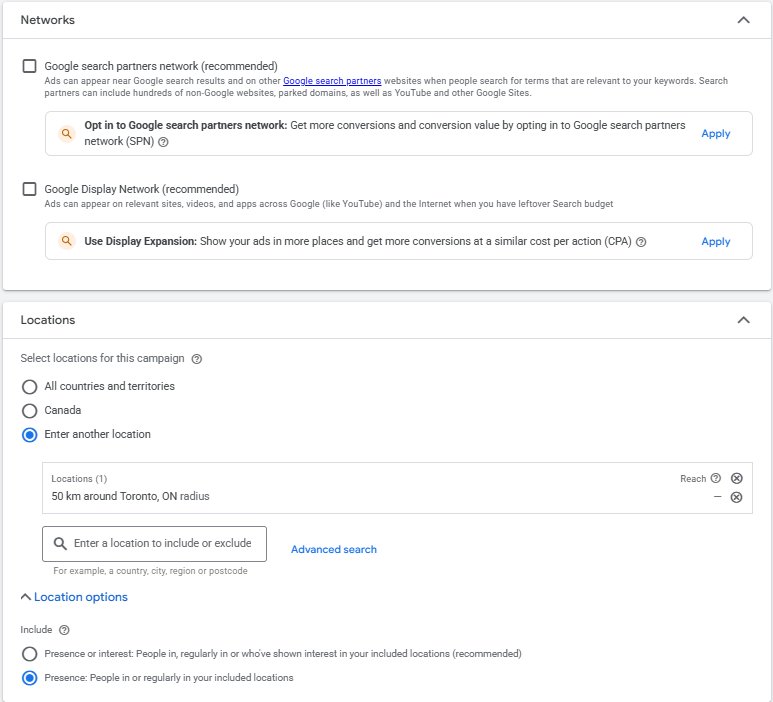
- Networks: Uncheck both Google Search Partners and the Google Display Network. You want your ads showing on Google search results, not on random websites.
- Locations: Enter the cities, postal codes or radius you actually service. Then open Location options and switch from the default “Presence or Interest” to Presence, which only shows your ads to people who are in or regularly in your area. Google still offers this option, even though it recommends the broader default.
- AI Max: If you see the AI Max option, I recommend leaving it off for your first campaign. It can show your ads on searches beyond your keyword list and write ad text automatically, which is hard to control before you have clean lead data. Google also began automatically upgrading some campaigns to AI Max in September 2026, so double-check this setting on existing campaigns too.
- Ad schedule: If nobody answers the phone after 6 PM, don’t run call-focused ads after 6 PM. A missed call from an ad is money gone.
Step 4: Build Your Ad Groups and Keywords
Create one ad group per service, such as “roof repair,” “roof replacement” and “emergency roof leak.” This keeps your ads and landing pages matched to what the homeowner actually searched.
Start with exact match keywords so you have control over which searches trigger your ads. Then add negative keywords right away to block searches that will never become customers. Here are some we add to almost every home service account:
- Job seekers: jobs, hiring, salary, career, training, apprenticeship
- DIY searches: how to, DIY, youtube, video, tutorial
- Supplies and parts: parts, supplies, wholesale, Home Depot, Lowe’s
- Bargain hunters (depending on your pricing): free, cheapest
Step 5: Write Your Ads and Add Assets
Write a responsive search ad for each ad group with as many headlines as you can. Include the service, your city, your license or warranty, your review rating and a clear offer, like free estimates or same-day service.
Then add your assets:
- Call asset: Your tracked phone number, scheduled to your business hours.
- Location asset: Links your Google Business Profile to your ads. If your profile needs work, our local SEO service covers profile optimization and reviews.
- Sitelinks, callouts and structured snippets: Extra links and selling points that take up more space on the page.
Step 6: Send Traffic to a Dedicated Landing Page
Don’t send your ads to your homepage. Someone searching “emergency roof leak repair” should land on a page about emergency roof leak repair, with your phone number at the top and a short form. A focused page can make a big difference in how many clicks turn into calls, and it’s exactly what our landing page design service is built around.
Step 7: Launch and Check Your Search Terms
Set your daily budget and launch. After three to five days, go to Insights and reports, then Search terms, and look at what people actually searched before clicking your ad. Add anything irrelevant as a negative keyword. Do this weekly for the first couple of months.
How To Set Up Microsoft Ads (Bing) For Home Service Leads
Microsoft Advertising, formerly Bing Ads, shows your ads on Bing, Yahoo, AOL, DuckDuckGo and other partner sites. The best part is you don’t have to build everything from scratch. Once your Google campaign is running well, you can import it and be live in an afternoon.
Step 1: Install the UET Tag and Create Conversion Goals
Microsoft’s version of the Google tag is called the Universal Event Tracking (UET) tag.
- In Microsoft Advertising, go to Tools, then Conversions, then UET tag, and create a new tag.
- Install it on every page of your website, either directly or through Google Tag Manager.
- Go to Conversion goals and create a goal for your thank-you page or form submission event, just like you did in Google.
- Set up your call conversions using your call tracking provider’s Microsoft integration, so calls from Bing are counted the same way as calls from Google.
If you’re already tracking conversions in Google Ads, the import tool can also bring over your Google conversion goals, which saves time. Just make sure the UET tag is actually firing before you trust the numbers. Microsoft’s free UET Tag Helper browser extension will tell you.
Step 2: Import Your Google Ads Campaigns
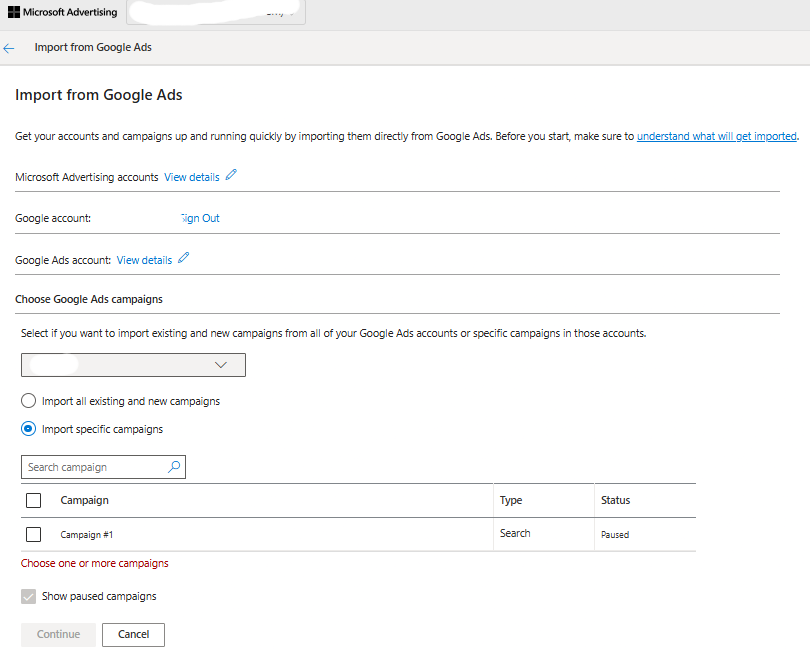
- Click Import, then choose Import from Google Ads and sign in with your Google account.
- Select the campaigns you want to bring over. Start with your best-performing search campaigns only.
- Choose whether to import your bids and budgets as-is or adjust them. Since clicks on Microsoft are often cheaper, you can usually start with lower bids.
- Consider setting up a scheduled import so changes you make in Google Ads carry over automatically. Just keep in mind that this can overwrite changes you make directly in Microsoft Advertising.
Step 3: Review the Settings the Import Doesn’t Get Right
Imports are a huge time saver, but they don’t catch everything. After importing, check these settings on every campaign:
- Locations: Confirm your service area came over correctly, then set your location option to show ads only to people in your targeted locations.
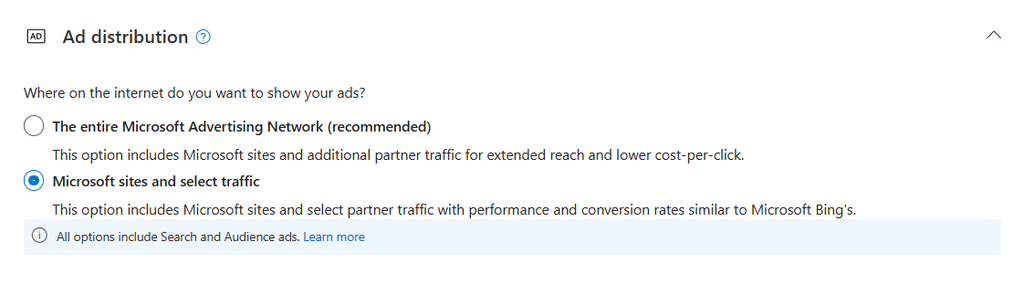
- Ad distribution: Limit your ads to Bing, AOL and Yahoo search (owned and operated) to start. Search partner sites can bring in a lot of low-quality clicks.
- Microsoft Audience Network: Make sure your search campaigns aren’t also running on the Audience Network. It places ads in feeds and on sites like MSN and Outlook, which is a completely different kind of traffic from search.
- Negative keywords: Confirm your negative keyword lists came over and are applied.
- Budget: Microsoft usually has less search volume than Google, so a smaller budget goes further here. Start with a fraction of your Google budget and scale up based on results.
Step 4: Upload Your Offline Conversions
Once your leads are in a CRM, you can send the good ones back to Microsoft. Microsoft Advertising supports offline conversion uploads using the Microsoft Click ID (msclkid) you captured in your form. You can upload a file once, schedule regular uploads or connect through an API, and Microsoft recommends uploading daily for the best bidding performance. We’ll talk more about why this matters in the lead filtering section below.
How To Set Up Meta Ads For Home Service Leads
Meta Ads run on Facebook and Instagram. Remember, the people seeing these ads weren’t looking for you, so the creative and the offer do most of the heavy lifting. Here’s how to set up a lead campaign.
Step 1: Install the Meta Pixel and Conversions API
- Go to Events Manager in your Meta Business account and create a dataset (this is your pixel).
- Install the pixel on your website, either directly or through Google Tag Manager.
- Set up a Lead event that fires when someone submits your quote form or lands on your thank-you page.
- Connect Conversions API as well. It sends your conversion data from your server instead of the browser, so ad blockers and privacy settings don’t hide as many of your leads. Most website platforms and CRMs have a built-in integration for this.
Step 2: Create a Leads Campaign
- In Ads Manager, click Create and choose Leads as your objective.
- You’ll be asked whether your ads fall under a special ad category. Depending on your service, your offer and where you advertise, Meta may require the Housing category for home-related ads, especially if you mention financing. It limits some targeting options, but guessing wrong can get your ads rejected, so answer honestly.
- Name your campaign after the service and the offer, like “Kitchen Remodel – Free Design Consult,” so it’s easy to read in your reports later.
Step 3: Choose Where Leads Come In
At the ad set level, Meta will ask for your conversion location. The two you’ll use most are:
- Instant forms: The form opens right inside Facebook or Instagram with the person’s details already filled in. This produces the most leads at the lowest cost, but it’s also where most junk leads come from, since it’s so easy to submit.
- Website: The ad sends people to your landing page to fill out your form. You’ll get fewer leads at a higher cost, but they tend to be more serious because they had to take an extra step.
For most home service businesses, we start with instant forms using the settings in Step 5, then test a website version against it.
Step 4: Set Your Location, Audience and Placements
- Location: Target the cities or radius you actually service and exclude the areas you don’t.
- Audience: For local home services, Meta’s automated audience targeting usually does fine, since your location settings already narrow things down. Don’t stack a bunch of interests on top of it.
- Placements: Stick to Facebook and Instagram feeds, Stories and Reels. Remove the Audience Network, which shows your ads inside third-party apps and is a well-known source of accidental taps and junk leads.
Step 5: Build Your Instant Form the Right Way
This is where you control lead quality on Meta. When creating your form:
- Choose the Higher intent form type. It adds a review screen where the person has to confirm their details before submitting, which cuts down on accidental submissions.
- Add two or three qualifying questions using multiple choice, such as the service they need, their postal code, their timeline and whether they own the home for example.
- Use the intro screen to set expectations, like “We’ll call you within 15 minutes to schedule your free estimate.” People who don’t want a call will skip the form, and that’s a good thing.
- Add a Call business button on the thank-you screen for people who’d rather talk right away.
Step 6: Create Ads That Show the Work
This is where the kitchen example from earlier comes to life. The ads that perform best for home services usually show the work instead of describing it:
- Process videos: A 30 to 60 second walkthrough of how a project goes from consultation to finished job.
- Before and after: The transformation is the selling point for kitchens, bathrooms, landscaping, driveways and patios.
- Owner on camera: A quick, unpolished video of the owner explaining the offer often beats a polished commercial.
- Customer testimonials: A real homeowner standing in their finished space.
Step 7: Connect Your CRM and Follow Up Fast
Instant form leads go cold quickly. The person who filled out your form was scrolling their feed a minute ago and could just as easily fill out a competitor’s form next. Connect your forms to your CRM so leads come in instantly, and set up automatic texts and emails so every lead hears from you right away. Our lead nurturing and automation service sets up these follow-up workflows so no lead sits untouched, even after hours.
Once your CRM is connected, you can also send lead outcomes back to Meta, which unlocks the most important lead quality setting on the platform. More on that next.
Lead Filtering: Don’t Let the Ad Platforms Optimize for Junk
This is the part most guides leave out, and it’s where a lot of home service campaigns go wrong. Google, Microsoft and Meta all optimize toward whatever you tell them is a conversion. They don’t know the difference between a homeowner who needs a new roof and a bot that filled out your form at 3 AM. If both count as a lead, the platform will go find you more of both, and it usually finds the cheap junk faster.
You’ll know this is happening when your cost per lead looks great in the ad platform, but your team keeps complaining about fake names, disconnected numbers, people outside your service area, and people who don’t remember filling out a form.
Here’s how to fix it:
- Block spam before it becomes a conversion. Add spam protection like reCAPTCHA or a hidden honeypot field to your website forms, validate phone numbers and emails, and only fire your conversion after the form passes those checks. If spam never registers as a conversion, the platforms can’t learn from it.
- Qualify on the form itself. Ask for the service needed, postal code, timeline and whether they own the home. It adds a little friction, and that’s the point. Leads outside your area or looking for work you don’t do can be filtered out before they reach your sales team.
- Only count real leads as primary conversions. Calls under 60 seconds, button clicks and page views should never be primary conversions. The fewer junk signals the algorithm sees, the less junk it finds.
- Cut the placements known for junk. Turn off Google Search Partners and the Display Network, Microsoft’s search partners and Audience Network on your search campaigns, and Meta’s Audience Network. Most of your spam and accidental leads will come from these.
- Send lead quality back to the platforms. This is the big one. Once your leads are in a CRM, mark each one as qualified, booked or junk and send the good outcomes back to each platform:
- Google: Upload qualified leads and booked jobs through enhanced conversions for leads. Once you have enough volume, make “qualified lead” your primary goal so Google bids toward real customers instead of form fills. Upload regularly, since Google won’t import these conversions if they’re uploaded more than 63 days after the click.
- Meta: Connect your CRM through the Conversions API and switch your performance goal to maximize number of conversion leads. Meta then optimizes for people likely to become qualified leads, not just people likely to fill out a form. Right now, this goal only works with instant forms.
- Microsoft: Upload your qualified leads as offline conversions using the msclkid you captured, ideally every day.
- Review your leads every week. Look through what came in, mark the junk in your CRM, and check your search terms and placements for anything that needs to be excluded. The platforms get better at finding good leads, but only if you keep teaching them.
Connecting ad platforms, forms, call tracking and your CRM so all of this happens automatically is a big part of our CRM and conversion tracking work. It’s also why every LeadStead lead generation program is measured on qualified opportunities, not raw form fills.
TIP: Don’t switch your primary goal to qualified leads on day one. The platforms need a steady flow of conversions to learn from. Start with all valid leads, build up volume, then move to qualified leads once you’re getting consistent numbers every week.
Comparing the Platforms
| Platform | Best For | Pros | Cons |
|---|---|---|---|
| Google Ads | Urgent repairs, planned replacements, any service people search for | Reaches homeowners at the moment they need you. The largest search audience. | Most expensive clicks, especially in competitive trades like roofing and HVAC. Needs close watching of search terms. |
| Microsoft Ads (Bing) | Adding extra search volume once Google is working | Usually cheaper clicks and less competition. Older, higher-income audience. Campaigns can be imported from Google. | Much less search volume. Imported campaigns need their settings checked. |
| Meta Ads | Visual projects like kitchens, bathrooms, landscaping and patios, plus retargeting | Can create demand before people start searching. Video and before-and-after content sells the work. | Lower intent, so leads need fast follow-up. Instant forms attract junk without the right settings. |
Frequently Asked Questions & Common Issues
Usually not. Splitting a small budget three ways means none of the platforms gets enough data to learn from. Start with Google Ads, add Microsoft once Google is producing steady leads, and add Meta if your service is visual or you want to retarget website visitors.
Search campaigns on Google and Microsoft can start producing leads within the first few days. Expect the first few weeks to be a learning period while the platforms figure out who converts and you clean up search terms. Meta can take a little longer, since you’ll usually need to test a few creatives before one takes off.
This almost always means the platform is optimizing for the wrong thing. Check whether spam or low-quality leads are counting as conversions, and work through the lead filtering steps above. It’s also worth checking how fast your team is responding, since a good lead that waits a day to hear back often isn’t a good lead anymore.
Instant forms make it very easy to submit, so some people forget they did it or never meant to. Switch to the Higher intent form type, add qualifying questions, and set the expectation on the form that you’ll be calling them. Calling within the first few minutes makes a big difference as well.
Conclusion
Paid ads can be one of the most reliable ways to generate home service leads, as long as each platform is matched to how homeowners actually look for your service. Put urgent and high-intent services on Google and Microsoft, use Meta to show off visual work, set up tracking before you launch, and keep teaching the platforms what a real lead looks like. We have clients running the same campaigns for years and consistently generate leads without any issues.
If you’d rather have someone build and manage all of this for you, tell us what you offer and where you operate, and we’ll recommend the right approach for your business.